Framer Chatbot Integration in 5 Minutes
Complete your Framer chatbot integration by pasting one script into your site settings. No coding required — qualify leads, answer questions, and book meetings automatically.
Trusted by businesses worldwide








Easy 5 minute set-up
How Wonderchat Works
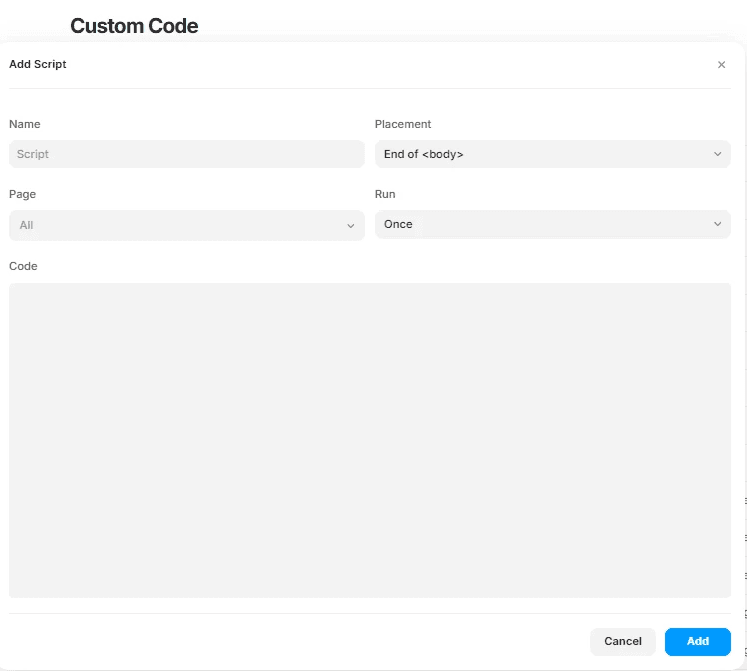
Framer Custom Code Settings
Open Framer Settings to add custom code
Navigate to the three-dot menu in your Framer project, go to Settings, then select Custom Code. This is where Framer allows you to inject external scripts — the exact entry point for embedding your Wonderchat AI agent onto your site.
No backend code needed
Works in Framer Settings
One-time configuration
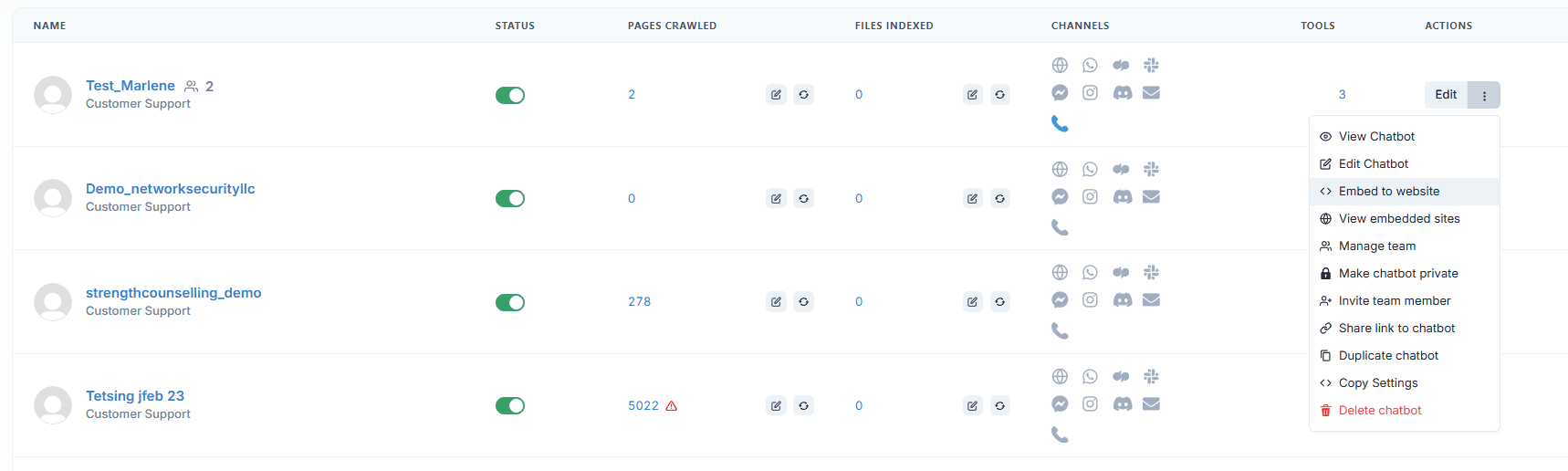
Get Your Framer Embed Code
Copy your Wonderchat embed script instantly
Inside Wonderchat, select your bot, open the three-dot menu, and choose Embed to Website. The embed configuration tab generates a ready-to-copy script that carries all your bot's settings — no manual configuration required on the Framer side.
One-click script generation
Bot settings pre-loaded
Embed tab clearly labeled
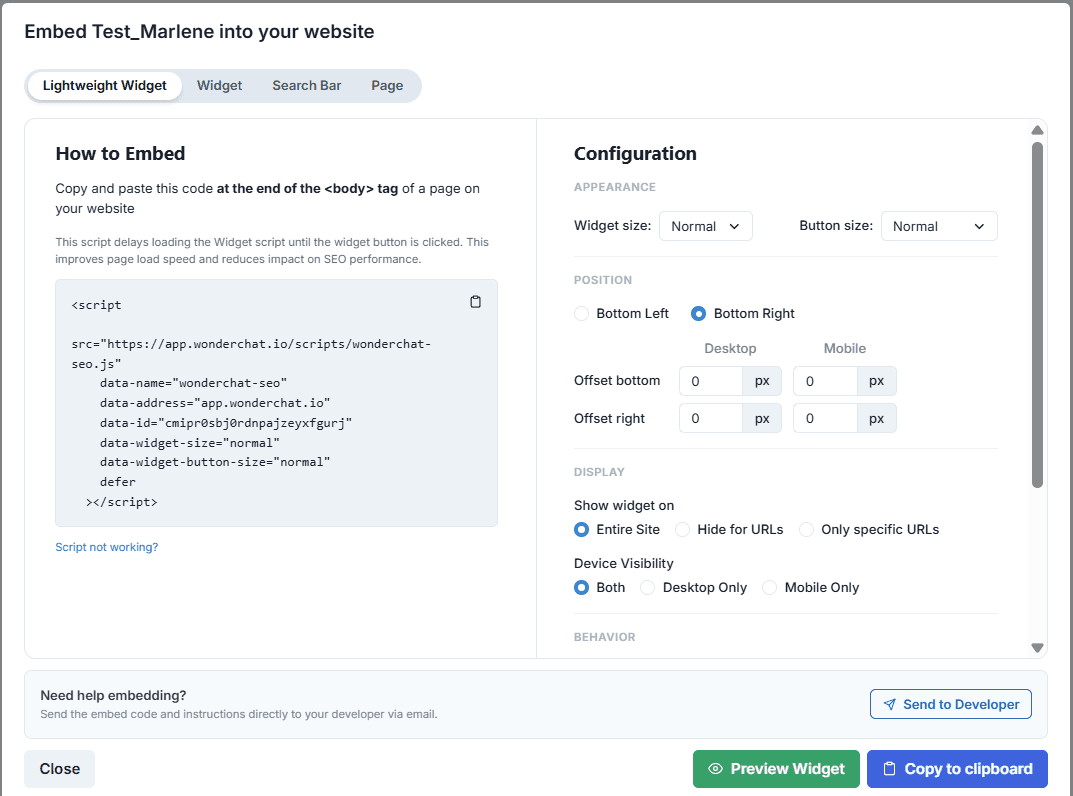
Chatbot Widget Appearance Options
Configure widget size, position, and behavior
Before copying the script, customize how the chat widget appears on your Framer site. Set the widget size, screen position, and display behavior directly inside the Wonderchat embed panel — changes are reflected in the embed code automatically.
Adjustable widget size
Choose screen position
Display behavior controls
5-minute set up with our native integration
Set Up Your Live Chat Alternative in Minutes
1
Create your AI chatbot – Pick the perfect AI model fit for your support needs.
2
Train AI with Docs, FAQs & Policies – Upload knowledge base files and site links.
3
Customise Workflows & Escalation Rules – AI handles what it can, and escalates what it can’t.
4
Monitor & Optimise with Analytics – See where customers get stuck and fine-tune responses.
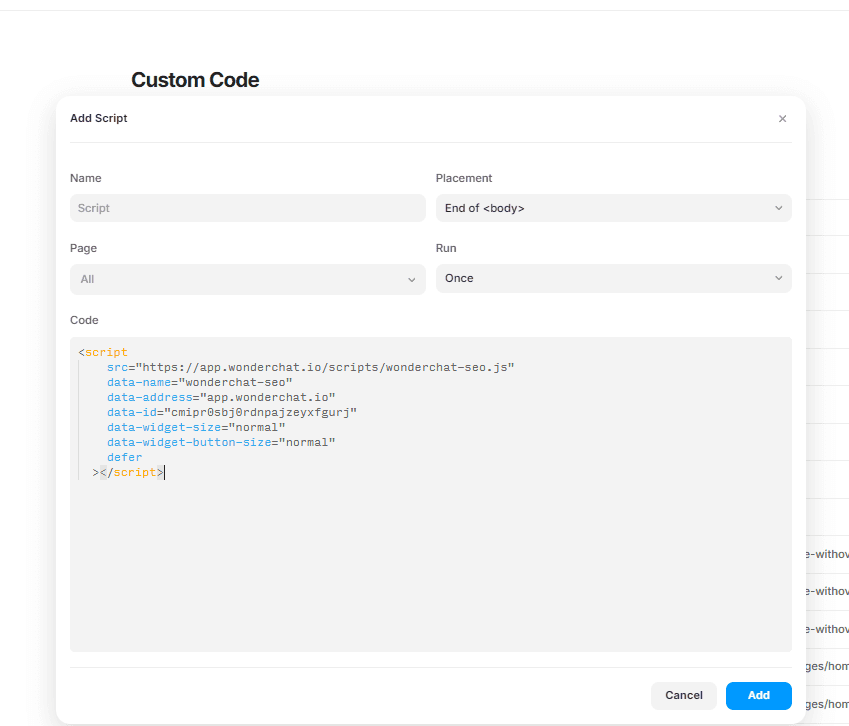
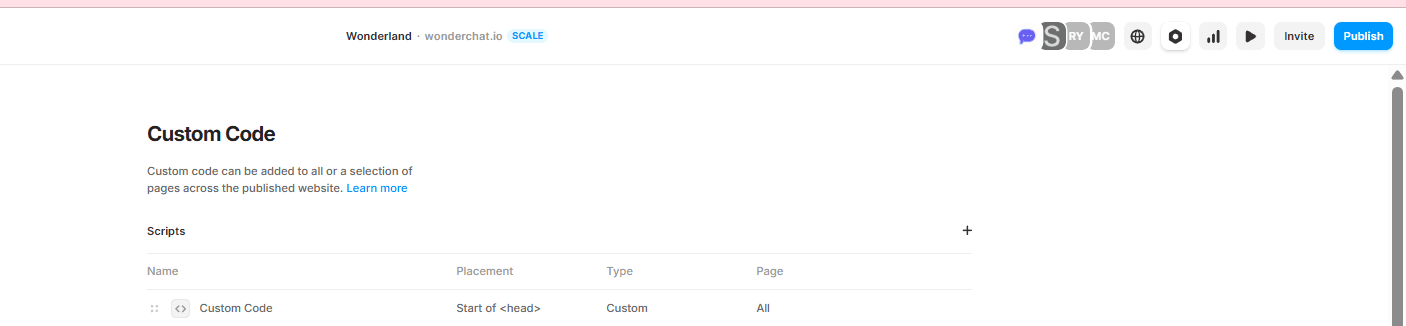
Paste Script into Framer Custom Code
Paste and name your script in Framer
Copy the embed code to your clipboard and paste it into the Custom Code section inside Framer Settings. Give the script a recognizable name and select whether it runs in the page head or body — then save to lock it in.
Paste into Custom Code
Name your script
Choose head or body placement
Framer Page Targeting and Publish
Set page targeting then publish your site
Choose which pages on your Framer site display the chatbot widget. Set the run trigger to fire on every page visit, then click Publish. Your Wonderchat AI agent goes live across your selected Framer pages immediately after publishing.
Select specific pages
Trigger on every visit
Publish to go live