


20/10/2026
Shared Inbox
A shared inbox is one email address, such as support@, that several people read and reply from, called a shared mailbox in Microsoft 365. On its own, it shows who can see an email, not who owns it.
Shared Mailbox vs Shared Inbox Software
In a plain shared mailbox, several people get the same messages and can send from the shared address. In Microsoft 365, a shared mailbox stores up to 50 GB without its own license and supports a maximum of 25 users.
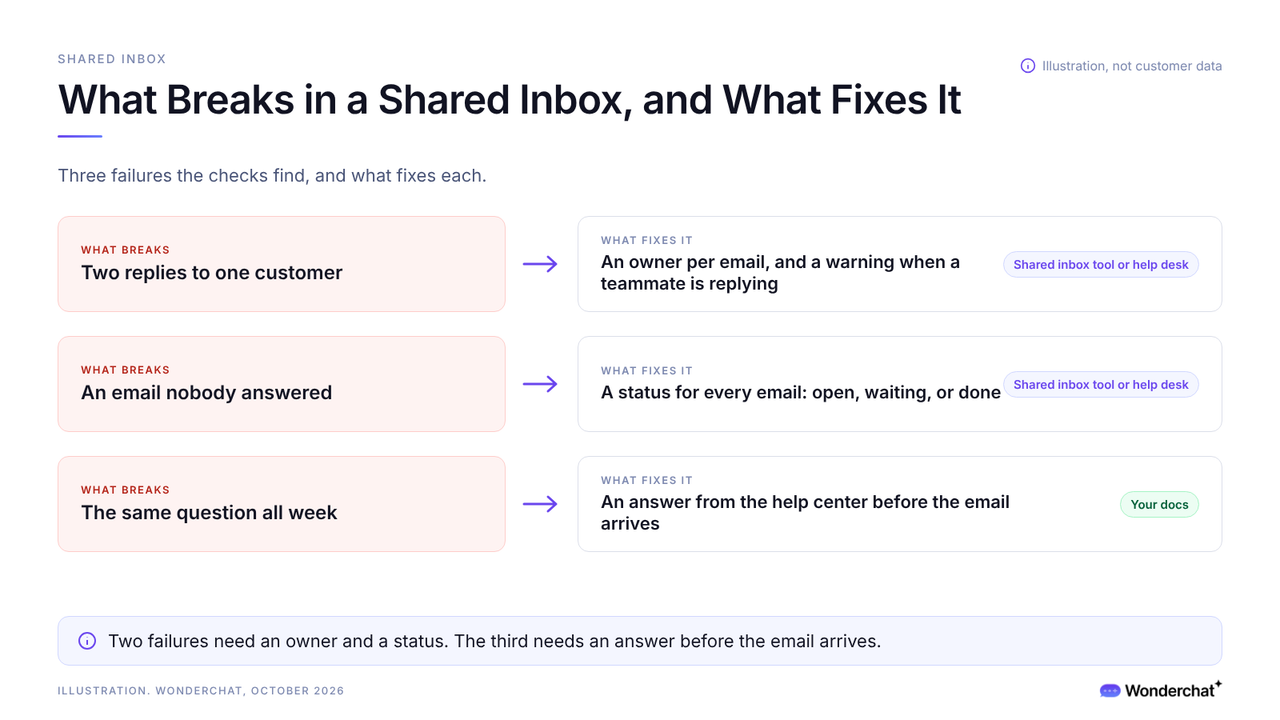
Shared inbox tools add what the plain mailbox lacks. Google's Collaborative Inbox lets members assign a conversation and mark it complete, and Help Scout stops a reply from sending when a teammate adds a reply or note to the same conversation first.
A plain shared mailbox isn't a ticketing system, which turns each request into a record with an owner and a status.
How to Tell When a Shared Inbox Stops Working
Run five checks on last week's email.
- Duplicate replies. Count customer threads with two team replies and no customer message between them, including replies in members' own Sent Items. The check passes at zero.
- Unanswered emails. Filter for customer emails past your reply target with no reply. The check passes at zero, or when each one has a named owner.
- Owners. Open 10 open threads. The check passes if you can see who owns each one, and whether it waits on you or the customer, without asking.
- Who sent it. Pick one reply. The check passes if the thread shows which teammate sent it.
- The same answer. Take this week's most common question and compare every reply. The check passes if each one gives the same answer and the same help center link.
Checks 1 to 4 test ownership. Check 5 tests; work your docs should do.
Why the Shared Inbox Decides the Next Purchase
The first duplicate reply only needs two people, so ownership breaks long before volume does.
For a small team, the moment a shared inbox breaks decides what to buy next, or whether to answer more questions before they arrive.
Wonderchat resolves about 75% of evaluated conversations without a person, and when no page covers a question, it offers a person and hands over with the full conversation attached.
Shared Inbox vs Distribution List and Help Desk
Four setups get mixed up.
- Distribution list: sends a copy to each member's own inbox, so replies happen out of sight. In Microsoft's words, distribution groups are "used for sending notifications to a group of people."
- Shared mailbox: one mailbox several people open, with access and send-as but no owner per email.
- Shared inbox tool: adds an owner, a status, and a warning when a teammate is replying.
- Help desk: the team, rules, and software that track each request as a ticket.
When the same question fills the inbox, answer it from your docs before it arrives, not with a bigger queue.
Wonderchat answers from a team's own help center and shows the source on every reply.
Frequently Asked Questions
What is the difference between a shared inbox and a distribution list?
A distribution list sends a copy of each email to every member's own inbox, so each reply leaves from one person's mailbox. A shared inbox is one mailbox the team works from, though in Microsoft 365 replies can land in the sender's Sent Items.
What are the disadvantages of a shared mailbox?
A plain shared mailbox doesn't show who owns each email. In Microsoft 365, it also supports a maximum of 25 users, you can't stop members from deleting messages, sent mail can't be encrypted, and only people inside your organization can use it.
When should a team move from a shared inbox to a help desk?
When duplicate replies and unowned emails keep showing up, not at a fixed ticket count. A shared inbox tool may fix ownership first. When the same documented questions repeat, answer them before they reach the inbox.
